Client - Server model
- 1. You buy the hardware
- 2. You buy the softwares
- 3. You employ an IT team to manage the hardwares
- 4. All this costs money. And the money, is not OPEX but CAPEX.
- 5. And, of course, as the software and hardware age - they need to be replaced.
Cloud computing
- 1. You rent the hardware
- 2. You buy the softwares
- 3. You employ few specialists to manage the infrastructure.
- 4. All this costs money. And the money, is OPEX and not CAPEX. You pay only for what you use.
- 5. And, of course, as the software and hardware age. But this time, the software can be upgraded. And, the harware rental can be swapped for newer ones.
Characteristics:
- 1. On-demand self service
No human interaction is needed for resource provisioning. Available 24/7.
- 2. Broad Network Access
Create a network in one part of the world and access it from another. Access is not physical.
- 3. Resource pooling
Resource is being shared across, multiple customers. But, can be limited.
- 4. Rapid Elasticity
Can be scaled up and down as needed. Within minutes.
- 5. Measured Service
Payment made for resource used. No additional costs. Measurement: Server time or DB Time or Function calls / unit time.
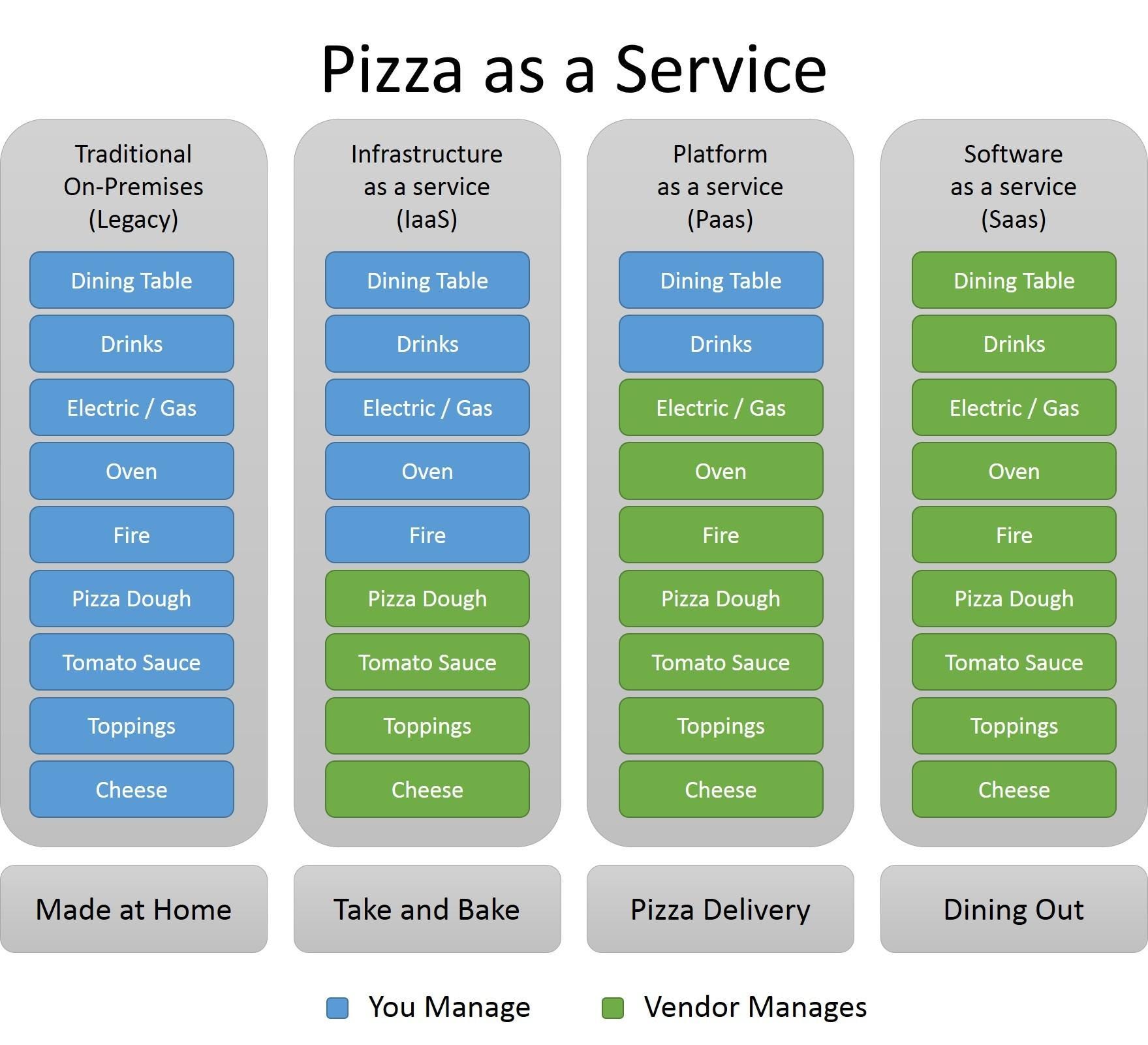
IAAS - PAAS - SAAS
- 1. IAAS - Infrastructure As A Service
- 2. PAAS - Platform As A Service
- 3. SAAS - Software As A Service
- 1. FAAS - Functions As A Service
- 2. DbAAS - Database As A Service
- 3. DAAS - Desktop As A Service
- 4. IOTAAS - IOT As A Service
- 5. AIAAS - AI As A Service
Cloud types
- 1. Public cloud
- 2. Hybrid cloud
- 3. Private cloud
Regions & Availability Zones
Regions: Each data centers location is called a region. There are ~60 regions.
| Americas | Europe | Africa | Asia Pacific |
|---|---|---|---|
| Brazil South | France Central | South Africa North | Australia East |
| Canada Central | Germany West Central | Central India | |
| Central US | North Europe | Japan East | |
| East US | Norway East | Korea Central | |
| East US 2 | UK South | Southeast Asia | |
| South Central US | West Europe | East Asia | |
| US Gov Virginia | Sweden Central | ||
| West US 2 | |||
| West US 3 |
Availability zones: A datacenter is called a zone. When there are more than one data center in a region, its called an Availability zone.
Subscription vs Accounts
Subscription: Everything you subscribe inside the Azure portal.
Account: Your Azure account (identity) using which you can access your subscriptions..
Resource groups
- 1. Menu -> Resource groups -> Create
- 2. Choose a Subscription
- 3. Enter a resource group name
- 4. Sepcify a region.
- 5. Review & Create -> Create
Doing the same with a command line: az group create -l westus -n CLITest-rg
Doing the same with a PowerShell: New-AzResourceGroup -Name PSTest-rg Location westus
Heirarchy of ownership:
- 1. Management groups
- 2. Subscriptions
- 3. Resource groups
- 4. Resources.
Storage accounts: Costs are extemely cheap.
SLA: Costs are extemely cheap. Different SLA's offer 99.9, 99.99, 99.99% uptimes. Free and shared resources don't have SLA's.
Pricing models:
- 1. Per resource
- 2. Per consumption
- 3. Reservations
- 4. Resources.
Compute
- 1. Set of services for hosting and running applications
- 2. Allows uploading code and executing it
- 3. Offers various levels of control and flexibility.
Azure - Virtual machines
- A virtual machine is a software, which runs on an OS like any other software. But this is capable of emulating an OS.
- Allows creating new servers quicly
- A single machine can host multiple Virtual machines.
- A user using a virtual machine, will not realise if they are using a VPC or a real PC.
- VM Density, refers to - Number of Virtual machines running on a Host machie.
- This is an Unmanaged service
Steps to create a virtual machine:
- 1. Select the Subscription, Resource group and region
- 2. Select the image (OS + other SW)
- 3. Select the size
- 4. Create the admin user for the VPC
- 5. Expose any ports needed
- 6. Check the pricing and create.
- On creating a Virtual machine, all it's dependant resources will be created. Virtual machine, Network interfaces, Network Security groups, Public IP addresses, and Virtual netowrks...
- Then you can connect to the Virtual machine via, RDP (Windows), SSH (Linux), or Bastion.
- Automation: For automation of creating similar machines, use "Download a template for Automation" link to download the JSON file of the current configuration. It's called ARM (Azure Resource Manager) template. The template can be created from scratch, be exported, modified, uploaded or deployed. This can be source controlled.
- These are parameters.json and template.json. Template.json file defines the resources, and parameters provides, the configuration values.
- Create via SSH: az deployment group create --resource-group name-of-the-rg --template-file template.json --parameters parameters.json
Steps to delete a virtual machine:
Remember: A virtual machine when created, also creates many dependant resouces. So, to remove a Virtual machine, remove the resource group it is part of.
- 1. Go to resource group page, and select "Delete resource group"
Cost of a virtual machine:
- 1. Virtual machine type
- 2. Disk allocation, and usage
- 3. IP address
- 4. Storage accounts cost
How to reduce the cost of a virtual machine:
- 1. Auto shutdown (Available while creating the machine): Automatically shutdown machines when not needed (for Test and development machine)
- 2. Reserved instances: Machines rented for 1-3 years and run continously (for production servers). Has great discounts and payments can be made monthly. Cannot be stopped / refunded.
- 3. Spot instances: Machines that run on unused capacity from Azure. Can be evicted on any momemnt. Offers upto 90% discount. Good for batch processes, long running processes that can restart.
- 4. Disk optimization: Choose the right storage disk. Default is premium SSD's for performance. Use standard SSD to reduce cost and for operations that are not processor intensive.
- Tip 1: Select the right size machine
- Tip 2: Select Linux machine over windows machine
- Tip 3: Check prices in nearby regions
Availability in Azure:
- 1. Fault domain: Group of physical hardware and a network switch. Similar to a RACK.
- 2. Update domain: Logical group of physical hardware that can undergo maintenance and be rebooted at the same time. Done by Azure.
- 3. Availability set (It's free): A collection of fault domains adn update domains. Can be upto 3 fault domains and 20 update domains. All domains are in the same zone (datacenter).
- 4. Availability zone (It's free): Physically separate zone within an Azure region. Techinically, a different building containing autonomous data center. Provides protection against a complete zone shutdown. Deploy load balancer, to route betweem the VM's.
Virtual machine Scale Set (Free):
- A group of separate VMs sharing the same image
- Managed as a group
- Can be scaled out or in manually or according to conditions specified
- Great for handling unpredictable loads
- Note: To make changes to the Scale set the original image has to be modified. Changes could be lost when it's made to indiviual machines, when they are scaled in.
- For web apps, load balancer must be infront of the scale set.
To enable scale in / scale out feature, one must register under Subscriptions -> Resource providers -> Search for "microsoft.insights", select and click register.
Command prompt: az provider show --namespace microsoft.insights -o table
Steps to create a virtual machine scale set:
- 1. Choose a subscription, resource group, give a virtual machine name, region, availability zone or set, image, size, default user....
- 2. Scaling: Scaling can be done manually or by using custom autoscale rules. Select the created Scale set, and on the menu bar, choose "Scaling"
- 3. To add a custom rule, choose "Add a rule" from Rules form field.
- 4. Scale out / scale in can be done based on several metrics.
- 5. Scale in algorithms: Default (1. Instance Id that's greatest, 2. newest instance, 3. oldest vm...),
Azure instance metadata services:
- 1. This is a REST API service
- 2. Provides information about, SKU, storage, networking and scheduled events...
- 3. Accessible only from the VM
- 4. With scaleset, get notifications about upcoming evication, can be polled every minute.
How to use Azure instance metadata services?
- 1. Create a Virtual machine and select the VM and download the RDP file and connect...
- 2. Make a POST API request using postman, to the specific url, and Azure will respond with metadata about the current Virtual machine
Azure - App services
- 1. A fully managed web hosting for websites
- 2. Publish your code and it just runs
- 3. No access to the underlying servers
- 4. Secured and compliant, managed by Azure
- 5. Integrates with many source control and dev ops services like, Github, BitBucket, Azure DevOps, DockerHub and more...
- 6. Supported platforms, .NET, .NET Core, Node JS, Java, Python, PHP...
- 7. Also supports containers...
- 8. Supported application types: Web Apps, Web API's and web Jobs (batch processes)...
- 9. App service can be autoscaled to support spikes on loads
- 10. Extremely flexible, similar to VM Scale set...
- The main difference between App Service and the Virtual machine is that, when VM is stopped, the pricing also stops. But for App Services, whent he service is stopped, doesn't mean the billing stops!!!
Azure App Service - Create new:
- 1. Search for, "App services", Click "Create new"
- 2. Select subscription, resource group, give a name (unique across Azure), choose (publish code / docker container), Runtime stack (PHP, .NET Core..), OS, Region, Windows Plan, SKU (Stock keeping unit) and Size
- 3. Click Review & Create
There's possiblitity to edit files deployed to App service via, a Console and an App Serice Editor window...
Scale up: Add more RAM, Processor and choose bigger and faster disks...
Scale out: Add more parallel machines...
Azure - AKS - Azure Kubernetes Services
- 1. Managed Kubernetes on Azure
- 2. Allows deploying containers and managing them using Kubernetes on Azure
- 3. Paying only on the instances (VMs) used
Containers:
- Thin packaging model
- Packages software, it's dependencies, and configuration files
- Can be copied between machines
- Uses the underlying OS
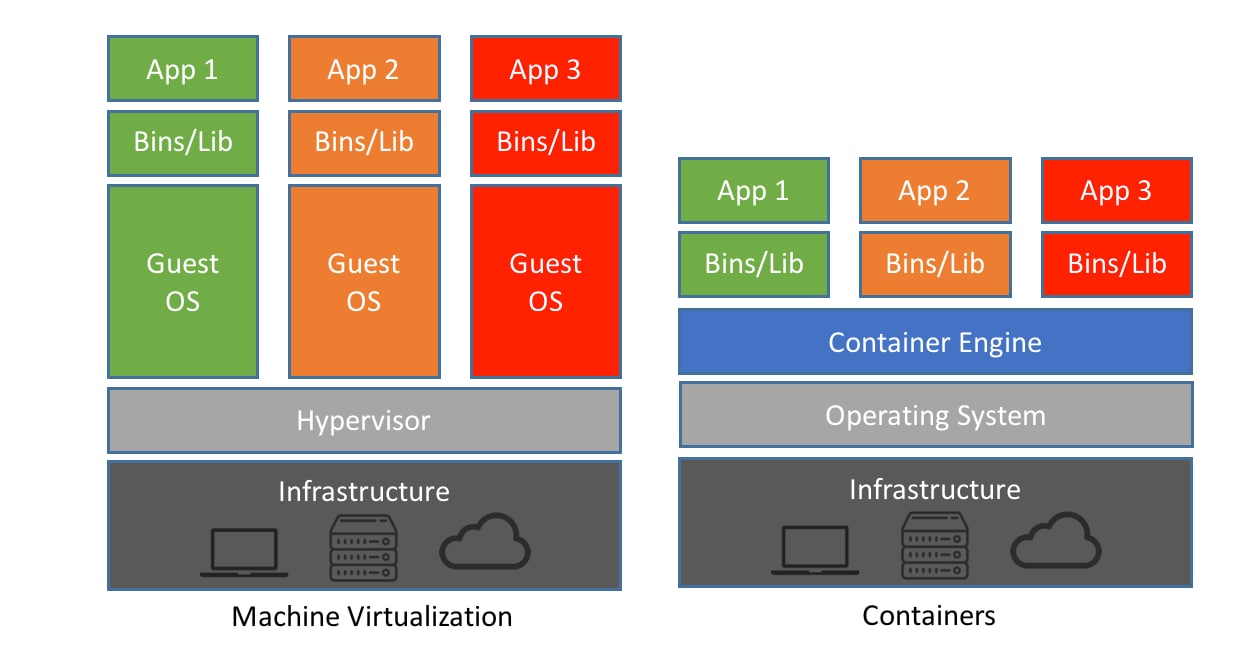
Containers Vs Virtual Machines:
- Containers are light weight as it's just a layer on top of the HOST OS and Virtual machines are heavy as it is a full OS
- Containers can be started and stopped in seconds to minutes, whereas starting Virtual machines takes a minimum couple of minutes for the boot to complete and the application to start.
- Containers can be restarted without restarting the hardware, but for Virtual machines some updates need harware restarts.
Problems with Containers:
- 1. Deployment: There could be multiple containers that might need deployment. And, this can't be done manually.
- 2. Scalability: Scalability must be done Automatically as well
- 3. Monitoring: How to monitor too many containers?
- 4. Routing: How do you route traffic across the containers?
- 5. Availability: How to make the containers run with high availability?
Deploying a container image to Azure:
- 1. Once the docker container is ready, we need to create a new Container registry
- 2. Choose a subscription, Give it a name, Choose a Tier (Basic, Standard, Premium), choose a resource group and location
Kubernetes:
De facto standard for container management. Provides- 1. Routing
- 2. Scalability
- 3. high availability
- 4. Automated deployment
- 5. configuration management and so on...
Command: az aks create -resource-group name-app-rg --name cart-aks --node-count 1 --generate-ssh-keys --attach-acr nameacr --node-vm-size Standard_DS1_v2
Azure - Azure functions
- 1. Small, foucused functions running as a result of an event.
- 2. Great for event driven systems
- 3. Automatically managed by Azure; It starts, stops and autoscales...
- 4. Flexible pricing plans
- 5. Serverless - A cloud resource that is completely managed by the cloud. The user need not think about VM's, CPU's, Memory etc...
Triggers and Bindings:
- Triggers: This makes a Function run. There are quite a few. Deeply integrated into Azure services.
- Triggers are not mandatory.
- Bindings: Are declarative connection to other resources. It can be input, output or both. These are not mandatory as well. Functions use bindings to read and write.
    namespace AzureExample.Function> {
        public static class EvenGridFunction {
            [FunctionName("EventGridFunction")]
            public static async Task Run(
                [HttpTrigger(AuthorizationLevel.Anonymous, "get, "post", Route = null)] HttpRequest req,
                [EventGrid(TopicEndpointUri = "MyEventGridtopicUriSetting", TopicKeySetting = "MyEventGridTopicKeySetting")]
                IAsyncCollector outputEvents, ILogger log) {
                    string name = req.Query(["name"]);

                    var myEvent = new EventGridEvent("message-id-3", "user-added", $"{{name: {name}}}", "event-type", DateTime.Utcnow, "1.0");
                    await outputEvents.AddAsync(myEvent);
                }
        }
    }
Supported Trigger types:
- Blob storage
- Cosmos DB
- Dapr
- Event Grid
- Event Hubs
- HTTP Requests
- IOT Hub
- Kafka
- Queue Storage
- RabbitMQ
- Service Bus
- Timer
Supported Binding types:
- Blob storage
- Cosmos DB
- Dapr
- Event Grid
- Event Hubs
- HTTP Requests
- IOT Hub
- Kafka
- Mobile apps
- Notification Hub
- Queue Storage
- RabbitMQ
- SendGrid
- Service Bus
- SignalR
- Table storage
Azure functions: Cold start
Since Azure Functions is a serverless application, incase if the server is shutdown by Azure on low demand scenarios, it might take few seconds for Azure to bring the application back up.
This problem can be avoid using the right hosting plan. The plans are:
- Consumption: Pay for function running time, and network data consumed. Be aware of ColdStarts and Function cannot consume more than 1.5 GB RAM.
- Premium plan: Pay for pre-warmed instances. Pay for CPU duration and memory usage. You can choose the machine configuration options. Advantages: No cold starts, no memory limits, better application performance and VNet configurations available, the prices are predictable. Downsides: EXPENSIVE.
- Dedicated plan: Functions run on existing app service. Great if the app server is underutilized. Make sure "Always On" option is activated. There's no auto-scale support for Dedicated plan functions.
Durable functions:
- Stateful functions that react with external resources and keep track of flow
- Offer simple syntax, hide complexities of managing states and allows retries...
- Used usually with, function chaining...
Networking
V Nets
- A network where one can deploy cloud resources
- Many resources (VM, App Services, DBs etc...) can be deployed within Vnets
- "Virtual" here means we don't create a physical network, but use existing Azure networks to create a logical network only for our application
- Resources in the same VNet can communicate with each other by default, but cannot communicate to resources in another VNet
- VNets are free, upto 50 VNets.
- VNets are scoped to single subscription and a single region
- Can be connected via Peering
- Segmented via Subnets
- Protected via NSG (Network Security Group) - Defines who can connect in and out of a subnet, like a mini firewall. NSG is free.
- NSG looks at 5 things called a Security Rule : Source, Source port, Destination, Destination port, Protocol
- Each VNet has IP range, upto 65,536, can be customized, and all devices must be within this address range
- Must be expressed in CIDR (Classless Inter-domain Routing) notation
Subnets
Network Peering
Sometimes, to increase security, we want to place resources in a completely different VNet, not just the subnet. That's when we use Network Peering.
Network perring allows two VNets to connect to each other. From a users point of view, it will be single VNet. Just makes sure the addresses assigned are not overlapped.
Peering can work across a region.
Peering is not free. It's like 1 cent per 100 GB
Securing the VM Access
The larger the attack surface - greater the risk
How to reduce the exposed Public IP Addresses:
- JIT Access: Just in time access. Open the port on demand and close it when not needed. Can be configured from the VM's page. Requires Security Center License Upgrade.
- VPN: A secure tunnel to the VNet. Can be configured so that no one else can connect to the VNet. Requires VPN software and license.
- Jump box: Place another VM in the VNet. Allow only access to this machine via public IP.Then from this machine, connect to the other VM's. Only one of the port is open as well. Cost is only the addition of the new VM.
- Bastion: Web based connection to the VM. No open port is required. Simple and secure. Costs $140 per month.
Service endpoint:
- Service endpoint solves the problem of exposed public IP adresses from Azure services like databases...
- Creates a route from the VNet to the managed service
- Supports limited services
- This is FREE
Private link:
- Configure the resource to connect to a VNet
- Configure Private DNS
- Might cause a problem if you have your own DNS
- This is not FREE
- Supports larger set of services
Service endpoint / Private link VS VNet Integration:
Service Endpoint and Private link allows access to a managed service (App services...) from a VM
VNet Integration on the other hand, allows access to a Database / VM from a managed service (App services...)
App Service Access Restrictions:
Similar to NSG but for App services
Restricts traffic to App services. Main use case is, backend app service that should only be accessed from the front end app service / VM
Load balancer
- Azure service that distributes load and checks health of VMs
- When a VM is not healthy, no traffic is directed to it
- Can work with VMs or Scale set
- Can be public or private
- Operates at layer 4 of the OSI layer (Transport layer)
Load balancer distribution algorithm
- Based on, source IP, source port, destination IP, destination port, and Protocol type
Types of Load balancer
- Basic:No redundancy, Open by default, Upto 300 instances, NO SLA, Free
- Standard:Has redundancy, Secure by default, Upto 1000 instances, 99.99 SLA, Not free
Load balancer configurations:
- Frontend IP configuration: Public IP exposed by the load balancer
- Backend pools: List of VM's to route the traffic to
- Health probes: Probes to detect unhealthy VMs and avoid sending traffic to them.
- Load balancing rules: Rule connecting the front end pool to the backend pool
Load balancer health probes:
- Check the health of the VMs
- A non healthy VM will be marked "Down" and will not be routed to
- Runs in intervals (of few seconds)
- Can run on TCP, HTPP, HTTPS
- Configurable unhealthy threshold - how many times a check should fail for the VM to be marked "Down" default is 2.
- Runs on the VM's host
- No network traffic outside the host. Originates from the same IP. Allowed by default in NSG.
When to use a Load balancer:
- Great for internal resources
When to NOT use a Load balancer:
- For external resources
- Load balancer cant handle HTTP
- Doesnt route based on path
- No default protection, instead use the application gateway
Application gateway
- Web traffic load balancer, ,operates on layer 7 of the OSI model
- Can function as the external endpoint of the web app
- Works with: VMs, Scale sets, App services, Kubernetes...
- Similar to a load balancer, but has SSL termination, autoscaling, Zone redundancy, session affinity, URL based routing, WebScoket and HTTP/2 support, Custom error pages, Header & URL Rewrite, WAF (Web Application Firewall),...
How to configure a Application gateway
- Backend pools:Can be VMs, App services, or scale sets...
- HTTP Settings:Settings for the incoming HTTP requests
- Frontend IP Configuraitons:Public IP exposed by the Application gateway
- Listeners:Receives requests on a specific port and protocol
- Rules:A rule connecting the listener to the backend pool
Application Gateway and AKS: Application gateway doesn't support AKS as of now.
Application gateway and Functions: Function apps are basically app services. App Gateway can protect function apps.
Data in Azure
Azure provides many data solutions as cloud services that are fully managed, and can be part of Azure app or fully independant. Some of them are:
- Relational databases
- NoSQL databases
- Object stores
Major database features:
- Security: data should be encrypted on rest
- Backup: If something fails, we should have backup
- Availability: The service should have high availability
Azure SQL
- Managed SQL Server on Azure
- Works like any other SQL Server using the same tools
- Great compatibility with on prem SQL Server
- Offers built in security, backups and availability
- Flexible pricing models
Various flavours of Azure SQL are:
- Azure SQL Database:Managed SQL server from Azure, Single database on a single server, automatic backups, updates and scaling, good compatibility with onprem SQL server. Has IP firewall rules, SQL and Azure AD Authentication, TLS secure communication. Has full weekly backup, has differential backup every 12-24 hours and transactional log every 5-10 mins... Backup is stored for 7-35 days, can be extended upto 10 eyars. can provide Active geo-replication. Two tiers: Provisioned and Serverless.
- Elastic pool: Based on Azure SQL. Allows to store multiple databases on a single server. Great for databases with low average utilization and infrequent spikes. Cost effective, purchase the compute resources you need.
- Managed instance:Closer to on prem SQL server. Can be deployed to VNet. The primary differences to other flavours are: No active geo-replication, SLA is 99.99, supports built in functions, runs CLR code. No autoscaling, tuning, and no availability zones. No serverless tier, no hyperscale.
How to create a new SQL Server
- 1. Search SQL databases, select and click Add
- 2. Select subscription, resource group
- 3. Enter database name (unique across Azure universe)
- 4. Create a server, or select an existing one
- 5. Set SQL Elastic pool to No
- 6. If on creating a new server, enter server name, admin credentials, and choose a location. and click OK
- 7. Click review + create
- 8. On configure database, choose the SQL server's configuration
- 9. Set networking options if needed
Cosmos DB
- Fully managed NoSQL database
- Amazing performance, <10ms for 99% of operations
- Globally distributed
- Fully automatic management system, including updates, scaling and fixes etc...
- Multiple APIs: SQL, Mongo, Gremlin, Azure Table, Cassandra...
- Heirarchical database. Accounts contain databases, which contains many containers, which contains JSON documents.
- Can be distributed across many regions
- API automatically picks the closest one
- Managed automatically, no code changes required
- Full backup is every 1-24 hours. Default is 4. Retention period is 20-30 days. Default is 30.
How to create a new COSMOS DB
- 1. Search Cosmos DB, select Azure Cosmos DB and click create
- 2. Select subscription, resource group
- 3. Enter account name (unique across Azure universe)
- 4. Choose Cose (SQL) API
- 5. SEt Notebooks to off, Location to your desired location, capacity mode to Provisioned throughput, Apply free tier discount set to apply, leave the rest to defaults.
- 6. Choose Network settings as needed
- 7. Select backup settings and click Review + Create and then create.
Azure MySQL
- Managed MySQL on Azure, works like any other MySQL database, great compatibility with on-prem MySQL database, offers built in security, availability and more
- Security: IP Firewall rules, Service end points, Private end points, Regular and Azure AD authentication, TLS Encryption and Data encryption by default
- Backup: Depends on service tier:
- Basic: Daily full backup;
- General purpose: Full backup, once a week, differential backup: twice a day, transactional backup: every 5 mins.
- Pricing: Based on Basic, General purpose, and Memory optimized; and based on compute requested.
Azure PostgreSQL
- Managed PostgreSQL on Azure, works like any other PostgreSQL database using the same tools, great compatibility with on prem PostgreSQL database, includes hyperscale deployment, offers built in security, backup and availability
- Security: IP Firewall rules, Service end points, Private end points, Regular and Azure AD authentication, TLS Encryption and Data encryption by default
- Backup: Depends on service tier:
Azure Storage
- Used for storing objects, massively scalable, Accesible via HTTP or HTTPS, available client libraries for different languages, highly durable and available
- 5 types of storages are:
- Blobs: Object store (BLOB: Binary large object: Video, images, docs, and large texts). Max object size: 4.77TB per file now (190TB in future). Extremely cost effective. Massively scalable, great availability and extremely easy to use. Used together with SQL or NoSQL database for file storage...
- Files: File shares for cloud and on prem deployments
- Queues: Queues...
- Tables: NoSQL data store (Similar to Cosmos DB, less optimized though)
- Disks: Storage volumes for Azure VMs (Managed by Azure completely)
- 6 redundancy options:
- LRS: Locally Redundant Storage: Data is synchonously copied 3 times within the same zone.
- ZRS: Zone Redundant Storage: Data is synchonously copied to 3 zones in the same region.
- GRS: Geo Redundant Storage: Data is synchonously copied 3 times within the same zone and then asynchonously copied a paired region. Data in the secondary region is accesible only after Failover process.
- GZRS: Geo Zone Redundant Storage: Data is synchonously copied to 3 zones in the region. And then asynchonously copied to paired region. Data is Accessible only after a Failover process.
- RA-GRS: Read Access Geo Redundant Storage: Data is synchonously copied to 3 zones in the region. And then asynchonously copied to paired region. There's a read-access to data in the secondary region WITHOUT a Failover process.
- RA-GZRS: Read Access Geo Zone Redundant Storage: Data is synchonously copied to 3 zones in the region. And then asynchonously copied to paired region. There's a read-access to data in the secondary region WITHOUT a Failover process.
- Failover initialization: via Portal, Azure CLI or PowerShell
Tiers of Azure Blob Storage
- Hot: Data that is accessed frequently. Has the highest storage cost and the lowest access cost. Best SLA (99.99%).
- Cold: Data that is used infrequently. Has higher access cost and lower storage cost. SLA of (99%). Data must be stored atleast for 30 days (or early deletion fees apply). Ex: Short term backup.
- Archive: Data for archival. Stored offline, no SLA. Can take hours to retrieve. Lowest storage cost and highest access costs. Data must be stored for atleast 180 days or early storage fees apply.
- Note: Retrieval times are same across hot and cold tiers. Archive tier doesn't support ZRS, GRS, and RA-GRS redundancy. Using RA-G(Z)RS, SLA improves to (99.99% Hot) and (99.9% cool).
- Pricing is based on:
- Redundancy option:
- Access tier:
- Storage:
- Access restrictions on storage objects:
- Private: No Anonymous access. 3 ways to access are: Azure AD, Access keys and Shared Access Signatures.
- Blob: Anonymous read access for blobs only
- Container: Anonymous read access for containers and blobs
- Choose the Storage account->Access keys. The access keys provides you with full access to do anything you want with the container. There are 2 keys. Key1 and Key2. This is a crude way to access the containers contents.
- The more customized way is to create a Shared Access Signature. The permissions can be customized for:
- Object types: Blob, file, Queue, and Table
- Resource types: Service, Containerm or Object
- Permissions for: Read, Writem Delete, List, Add, Create, Update and process
- Set availability data ranges, and expiry data ranges
- Allowed IP addresses
- HTTP, or HTTP and HTTPS
- When SAS token is created: this gives us: A connection string, SAS token and Blob service SAS URL.
- Azure Content Delivery Network (CDN):
- Select a storage container->Choose "Azure CDN" from sidebar. And create a configuration profile.
- Enter a name under "CDN profile" (New or use an existing one)
- Choose a pricing tier
- Choose an endpoint name
- Azure will let us know the, Origin hostname (URL). It takes a while to create a CDN.
- Lifecycle management:
- Select a storage container->Choose "Lifecycle Management" from sideba. Then click "Add a rule".
- Add a rule name
- Set rule scope (Apply rule to all blobs or limited blobs), blob type (block blobs, append blobs), and blob subtype (base blobs, snapshots, versions)
- Add conditions based on (if last modified date is so and so, then move to archive storage) something like that. This can be done with CODE VIEW as well. Which is based on JSON format.
- How to create a new storage account:
- Search for Storage account. Choose Storage Accounts
- Click, Create. Choose Subscription, Resource group, give a name, location, Performance (HDD type), Account kind (General purpose or...), replication (GRS,...)
- Review + Create and then Create
- Select the storage account and choose container. Then in the new window: click "+ Container". Give it a name and choose a access level (Private, blob or container...)
- Azure Storage Explorer:
- Download "Azure Storage Explorer" from azure.microsoft.com
- Open the tool, and sign in and connect to the Azure storage.
- Azure Redis:
- Managed Redis on Azure. Provides really fast in memory distributed cache. Great for short lived frequently accessed data. Fully compatible with OSS Redis. Enterprise REDIS depends on service tiers.
- Security: IP Firewalls, Private and Service End points, TLS secure communication.
- Service tiers:
- Basic: Based on a single VM, no SLA, no distribution, good for DEV / TEST
- Standard: Based on two VMs, replicated, SLA upto 99.9%
- Premium: High performance, better throughput, lower latency, SLA upto 99.95%
- Enterprise:Based on Redis Enterprise. Offers additional features (RedisSearch, Redisbloom and more). SLA upto 99.99%
- Enterprise flash: Uses non volatile memory, reduces storage cost, SLA upto 99.99%
- Pricing is based on the selected tier and the memory consumed.
- Create a new Azure Redis Cache:
- Search for Redis. Select "Azure cache for Redis" and "Create"
- Select the subscription, resource group.
- Under instance details, provide a DNS name (mycache.redis.cache.windows.net)
- Choose a location and cache type.
- Then you can configure the network as well
- Then click Review + Create and Create. Creating a REDIS cache could take a while...
Messaging services
- Messaging is extremely important aspect of Software Architecture
- Must be able to handle load, throughput and have minimum latency
- A core part of every microservice architecture
- 4 managed messaging services from Azure are:
- Storage queue Part of Azure Storage account. Simplest queue implementation. Create queue->send message->receive messaage. No special pricing, it's included in storage account. Same for availability. Performance (For 1KB msg, max is 64KB): 20k msgs/sec/account. Or, 2k msgs/sec/queue
- Creating a Storage queue: Create a new storage account. Choose subscription, resource group. Under instance details, provide: storage account name, choose location, performance tpye, account kind and replication.
- Review + Create and Create. Go to the newly created resource and select "Queues"
- Click "+ Queue", give it a name, and click "+ Add message"
- Service Bus
- Fully managed, full blown message queueing service, durable, supports point to point (Queue) and pub/sub (Topic) scenarios
- Compatible with AMQP and JMS 2.0 (premium only) API
- The advantages with Service Bus are: Message sessions, Dead letter queue, Scheduled delivery, Transactions, Duplicate detection and more...
- 99.99% availability and can be configured for backups
- Provides Security via IP Firewall, Private and Service endpoints
- Tiers: Basic, Standard, Premium
- How to create a new Service Bus:
- Search for Service Bus, Click "+ Create"
- Select subscription, resource group, namespace name (unique across azure), location and a pricing tier.
- Review + Create and Create a Service Bus
- Once the resource is created, click "+ Create" give a name, and click "Create". Now a service bus is created.
- Event grids
- Allows building event based architectures, Publishes events to interested parties, No queue / order, Strong integration with many azure services, cost effective, simple pricing and no tiers. HA (high availability) built in.
- Various terms are:
- Event : What happened? A storage blob was added.
- Publisher : Who created? Microsoft? Or within org?
- Event source : What happened? Storage account, IOT hub added, removed
- Topic : Where the event is sent? Used to group related events.
- Subscription : Which events interest me?
- Event handler : Where the event is sent to?
- Event hub
- Big data streaming platform and event ingestion service
- Note: No "messaging" in the description
- basically a managed Apache Kafka implementation, extremely Robust and flexible can handle millions of requests per second

Azure - Active Directory (AD)
- AD - Active Directory
- Central identity and access management cloud service
- Used to manage access to thousands of apps, including Azure portal
- Secure, Robust and intelligent
- Has Multi factor authentication, Conditional access, device managementm hybrid identiy, Identity protection, monitoring and reports and lots more...
- Tenants
- A tentant is a specific instance of Azure AD containing accounts and groups
- It's also called a Directory. It is NOT a part of the subscription hierarchy.
- A tentant can be assigned to multiple subscriptions.
- How to add Azure AD to a subscription?
- One cannot create a new Azure AD for our subscription. Azure AD lives outside all the subscriptions, but one can "connect / add" AD to a subscription.
- Search for "Azure Active Directory", on selecting you should see "Default Directory" available.
Active Directory (AD) - Users and Roles
- Users & Roles
- Users and roles are the two of the three main objects managed by Azure AD. The third one being ROLES.
- Manages and stores the users that are part of the tenant
- Groups can made like, IT Admins, Developers and Testers
- Allows defining roles to groups, instead of assigning to individuals
Azure - Monitoring
- Why monitoring?
- Azure, offers a lot of built in monitoring mechanisms
- It's a good idea to be familiar with as many as possible
- Also, a centralized monitoring hub where all monitoring data is streamed, and can be queried, ir used for triggers.
- Monitoring is of two types: Metrics (instantaneous data), Logs
